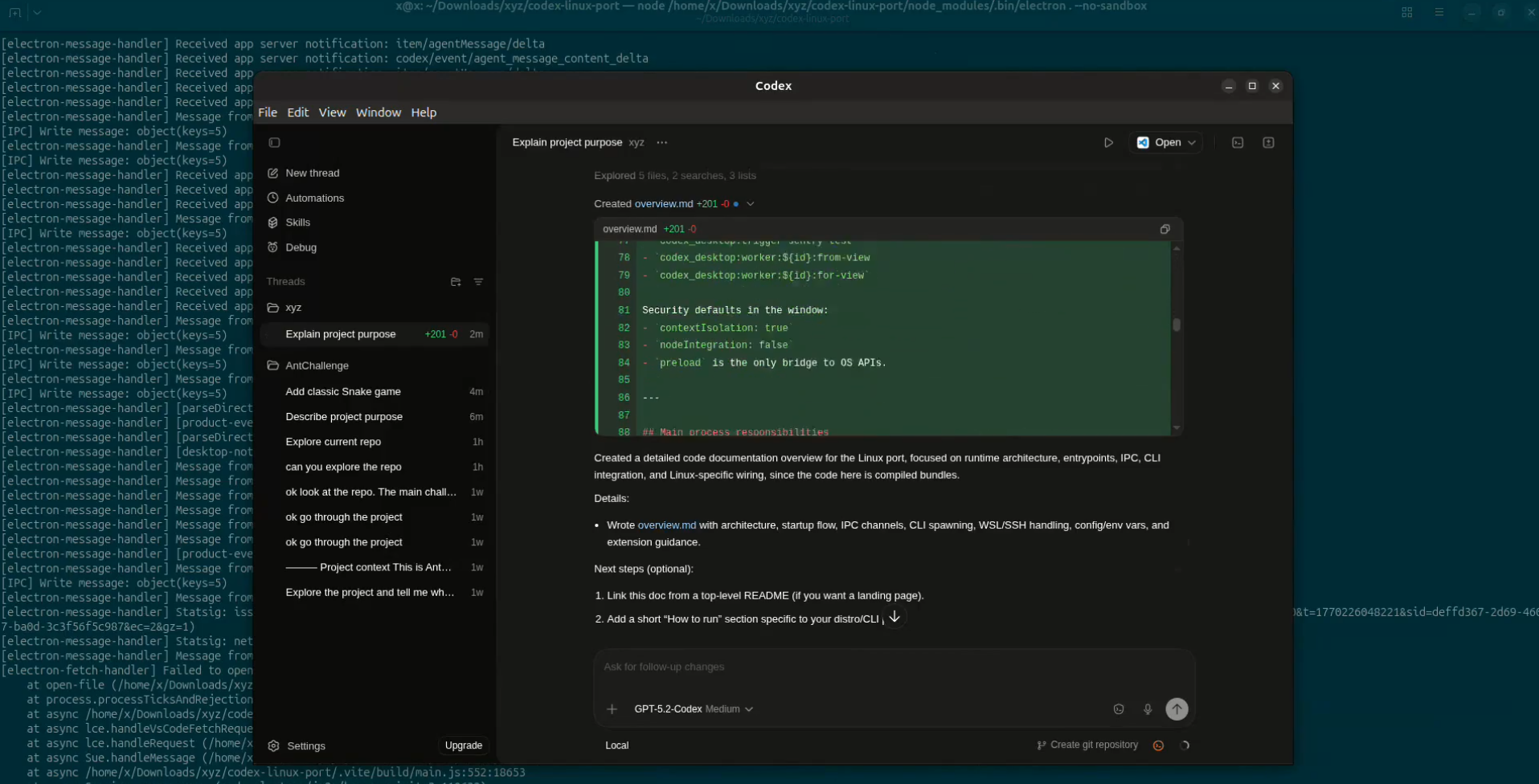
OpenAI released Mac only Codex App. I was eager to test it on Linux.
** Blog vibe drafted by Slopus**
Yesterday, OpenAI dropped their new Codex desktop app, a slick GUI for their coding agent that lets you run multiple AI tasks in parallel, review diffs inline, and manage git worktrees without leaving the app.
One problem: macOS only.
I’m on Linux.
So I did what any reasonable person would do: I cracked it open and made it run anyway.
The Hunch
Here’s the thing about modern desktop apps, most of them are just websites wearing a trenchcoat. Slack? Electron. Discord? Electron. VS Code? Electron.
Electron apps bundle Chromium and Node.js together, which means the actual application logic is usually JavaScript. Platform-agnostic JavaScript.
So when I downloaded Codex.dmg and saw it was 141MB, I had a feeling this can work, afterall reverse engineering Symbian Firwares has its benefits.
$ file Codex.dmg
Codex.dmg: zlib compressed data
Let’s see what’s inside.
Cracking Open the DMG
DMG files are Apple’s disk image format. On Linux, you can’t just double-click them—but 7zip doesn’t care about your operating system:
$ hexdump -C Codex.dmg | head -5
00000000  78 da 63 60 18 05 43 18  fc fb ff ff 1d 10 33 02  |x.c`..C.......3.|
Those first two bytes—78 da—are the zlib magic number. The DMG is compressed. 7zip handles this:
$ 7zz x Codex.dmg -o./extracted
And there it is:
extracted/
└── Codex Installer/
    └── Codex.app/
        └── Contents/
            ├── Frameworks/
            │   └── Electron Framework.framework/  ← Bingo.
            └── Resources/
                └── app.asar  ← The actual app.
Electron confirmed. Time to go deeper.
Inside the ASAR
Electron apps package their source code in .asar archives—a format Electron invented. It’s basically a tar file with a JSON index.
┌─────────────────────────────────────────────────────┐
│ Bytes 0-3: Header size (uint32, little-endian)      │
│ Bytes 4-N: JSON file tree with byte offsets         │
│ Bytes N+1-EOF: Concatenated file contents           │
└─────────────────────────────────────────────────────┘
Extract it:
$ npm install -g @electron/asar
$ asar extract app.asar ./source
Now we can see everything:
source/
├── .vite/build/
│   ├── main.js      ← Electron main process
│   ├── preload.js   ← Context bridge
│   └── worker.js    ← Background tasks
├── webview/
│   ├── index.html   ← The UI
│   └── assets/      ← React bundle
├── native/
│   └── sparkle.node ← Uh oh.
└── package.json
The package.json tells us what we’re working with:
{
  "name": "openai-codex-electron",
  "main": ".vite/build/main.js",
  "dependencies": {
    "better-sqlite3": "^12.4.6",
    "node-pty": "^1.1.0",
    "electron-liquid-glass": "1.1.1"
  },
  "devDependencies": {
    "electron": "40.0.0"
  }
}
Most of this is just JavaScript. But those native modules? That’s where it gets interesting.
The Native Module Problem
Native modules are Node.js addons written in C/C++ and compiled to platform-specific binaries. Let’s look at one:
$ file native/sparkle.node
native/sparkle.node: Mach-O 64-bit bundle arm64

$ xxd native/sparkle.node | head -2
00000000: cffa edfe 0c00 0001 0000 0000 0600 0000  ................
0xFEEDFACF is the Mach-O magic number—Apple’s executable format. This binary literally cannot run on Linux.
But here’s the thing: not all native modules are platform-specific in their functionality. Let’s categorize:
| Module | What it does | Linux-compatible? |
|---|---|---|
better-sqlite3 |
SQLite bindings | ✅ Yes—just needs rebuild |
node-pty |
Pseudo-terminal | ✅ Yes—just needs rebuild |
sparkle.node |
macOS auto-updater | ❌ No—uses Sparkle.framework |
electron-liquid-glass |
macOS blur effects | ❌ No—uses NSVisualEffectView |
Two modules need rebuilding. Two need stubbing.
The ABI Problem
Even for cross-platform modules, you can’t just npm install them. Native modules are compiled against a specific Node.js ABI (Application Binary Interface). Electron bundles its own Node.js version, and the ABIs don’t match:
NODE_MODULE_VERSION mapping:
├── Node.js 18.x  → ABI 108
├── Node.js 20.x  → ABI 115
├── Node.js 22.x  → ABI 127  ← My system Node
└── Electron 40   → ABI 143  ← What we need
If you try to load a module compiled for ABI 127 into Electron (ABI 143), you get:
Error: The module was compiled against a different Node.js version using
NODE_MODULE_VERSION 127. This version of Node.js requires NODE_MODULE_VERSION 143.
The fix is @electron/rebuild, which recompiles native modules against Electron’s headers:
$ npm install electron@40.0.0 better-sqlite3 node-pty
$ npx @electron/rebuild
Now they’re Linux ELF binaries with the right ABI. ✓
Stubbing the macOS Stuff
For the modules that are genuinely macOS-only, we need stubs—fake modules that export the same interface but do nothing.
sparkle.node handles auto-updates via macOS’s Sparkle framework. We want this gone—if it worked, it would try to download macOS updates and break our Linux port. The app checks if it exists and gracefully degrades:
$ rm native/sparkle.node
No stub needed. To update, just re-run the installer with a new Codex.dmg.
electron-liquid-glass is trickier. It’s imported dynamically, and we need to provide a fake module:
// node_modules/electron-liquid-glass/index.js
const stub = {
  isGlassSupported: () => false,  // "No blur effects on Linux"
  enable: () => {},                // No-op
  disable: () => {},               // No-op
  setOptions: () => {}             // No-op
};
module.exports = stub;
module.exports.default = stub;
The app calls isGlassSupported(), gets false, and skips the blur effects. No crash.
The Renderer URL Trick
Electron apps have two processes: main (Node.js) and renderer (Chromium). In development, the renderer loads from a local dev server (localhost:5175). In production, it loads from bundled files.
The app decides which to use by checking app.isPackaged:
if (app.isPackaged) {
  win.loadFile('webview/index.html');
} else {
  win.loadURL('http://localhost:5175/');
}
Since we’re running from source, isPackaged is false, and it tries to connect to a dev server that doesn’t exist.
The fix? Environment variable override:
$ export ELECTRON_RENDERER_URL="file://${PWD}/webview/index.html"
The app checks this variable first. Renderer loads. UI appears.
The Final Piece: Codex CLI
The desktop app is actually just a pretty wrapper around the Codex CLI—the real agent that does the coding work. The CLI is open source and has Linux builds:
$ npm install -g @openai/codex
$ export CODEX_CLI_PATH=/usr/local/bin/codex
The app finds the CLI, spawns it, communicates over IPC. Everything connects.
It Works
$ ./codex-linux.sh
Full UI. Authentication works. Can create tasks, review diffs, manage worktrees. The only thing missing is the fancy macOS blur effect, which… I can live without.
Why This Worked
A few things made this surprisingly easy:
-
Electron is inherently cross-platform. The framework abstracts away most OS differences. The JavaScript “just works.”
-
OpenAI architected it cleanly. The heavy lifting happens in the CLI (which has Linux support). The Electron app is mostly UI.
-
The macOS-specific features were cosmetic. Auto-updates and blur effects aren’t core functionality. Stubbing them doesn’t break anything.
-
No code signing enforcement. Unlike iOS, macOS apps don’t refuse to run if modified. The app doesn’t verify its own integrity.
The One-Liner
I packaged everything into a single installer script. Put Codex.dmg in a folder, run this, and you get a working Linux app:
$ chmod +x install-codex-linux.sh
$ ./install-codex-linux.sh
Takeaways
If you’re stuck with a “macOS-only” Electron app:
- Extract the DMG with 7zip
- Check for Electron (
Electron Framework.frameworkorapp.asar) - Extract the ASAR and read
package.json - Categorize native modules: rebuild cross-platform ones, stub macOS-only ones
- Match the Electron version exactly for ABI compatibility
- Override the renderer URL if it expects a dev server